
Dashboard guide
Set the right scope for customer service
Choose the assistant's purpose, business service and connected source before deciding how it should answer visitors.

Short answer
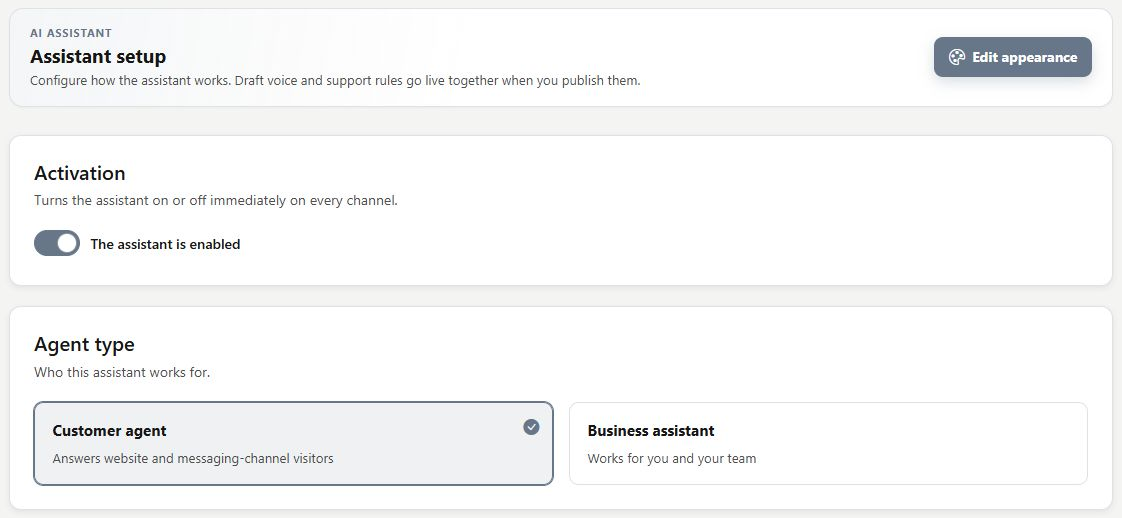
Assistant setup brings the main service choices into one place. Review the assistant type, the business service it should support and the source connected to that service. Then check activation and answering behaviour separately. A service choice defines the intended experience, while useful answers and actions still depend on prepared knowledge, access and connected business data.
Start with the job customers need done
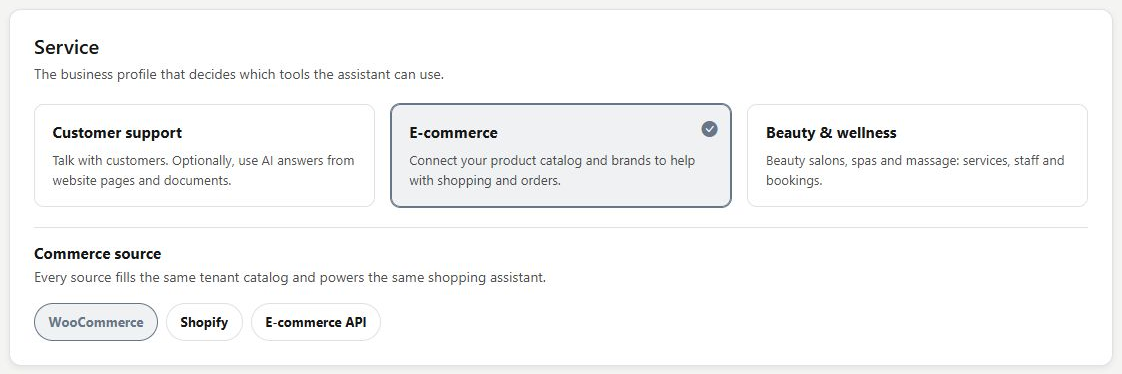
Open AI Assistant > Setup. Review whether the workspace serves customer conversations or business work, then inspect the service choices. Customer support focuses on questions and help; E-commerce adds a connected product context. Choose a service because it matches the business task and available sources.
Check the source and the answering boundary
For a commerce service, review the source shown alongside the service setup. A visible source selection does not prove that its connection or catalogue is healthy. Check the corresponding integration and data before relying on it. Review Activation and AI answers as separate controls when deciding how customers will be served.
- Some setup choices apply immediately; read the control before changing it.
- Personality, business hours and owner instructions have their own review steps.
What you can do
Use the visible controls to review the setup and choose the next step.
- Review assistant type and business service.
- Inspect the service's selected commerce source.
- Check activation independently from answering mode.
- Continue to dedicated personality, availability and instruction controls.
Continue with the Dashboard guides or your inbox.
Good to know
A service selection does not complete an integration or guarantee a current catalogue. Connect the supported source and verify its actual catalogue state.
Before you begin
Open the intended workspace and review the current state.
- Check the active workspace and your access.
- Review the relevant information and available controls.
- Verify the result after making an intended change.