Dashboard guide
Choose what needs attention today
Use Home to spot work needing attention, check today's inbox and open the workspace area that can move the task forward.

Short answer
Home turns the workspace's current state into a practical starting point. Review Needs attention, check Inbox today and use the setup shortcuts to open the right area. Keep visitor attendance separate from conversation work: someone can browse the website without sending a message. Each card describes its own scope and leads to the relevant task.
Start with the work that needs a decision
Review Important, Next steps and AI assistant in Needs attention. A saved widget awaiting publication, unanswered conversation or source connection requiring attention calls for a different next step. Use the card to open its owning area, then verify the underlying state before acting.
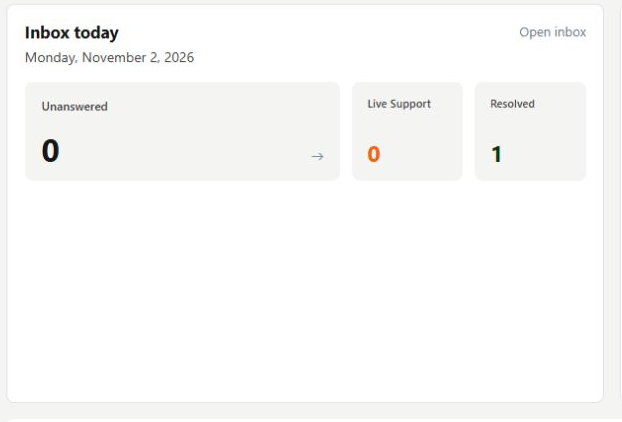
Use the overview to reach the right workspace area
Inbox today summarises today's unanswered, live-support and resolved work. Set up your assistant links to the catalogue, knowledge, widget and integrations with their current state. Team availability and customer attendance provide additional context; an online visitor is not automatically an open enquiry.

What you can do
Use the visible controls to review the setup and choose the next step.
- Review prioritised workspace actions.
- Open today's relevant conversation views.
- Reach catalogue, knowledge, widget and integrations from setup shortcuts.
- Read attendance separately from conversation counts.
Continue with the Dashboard guides or your inbox.
Good to know
No. Attendance includes visitors who have not started a conversation. Inbox counters describe conversation work.
Before you begin
Open the intended workspace and review the current state.
- Check the active workspace and your access.
- Review the relevant information and available controls.
- Verify the result after making an intended change.