
Dashboard guide
Set up the customer experience one step at a time
Follow the seven-step setup path while keeping selected capabilities, prepared knowledge, publication and activation as separate checks.

Short answer
Quick setup guides you through the purpose, capabilities, personality, language, knowledge, chat appearance and final trial of your customer experience. Review each step in the intended workspace rather than treating a confirmed step as proof that every connected service is ready. Finishing the guide and enabling the chat are separate from placing it on your website.
Choose the experience your business can support
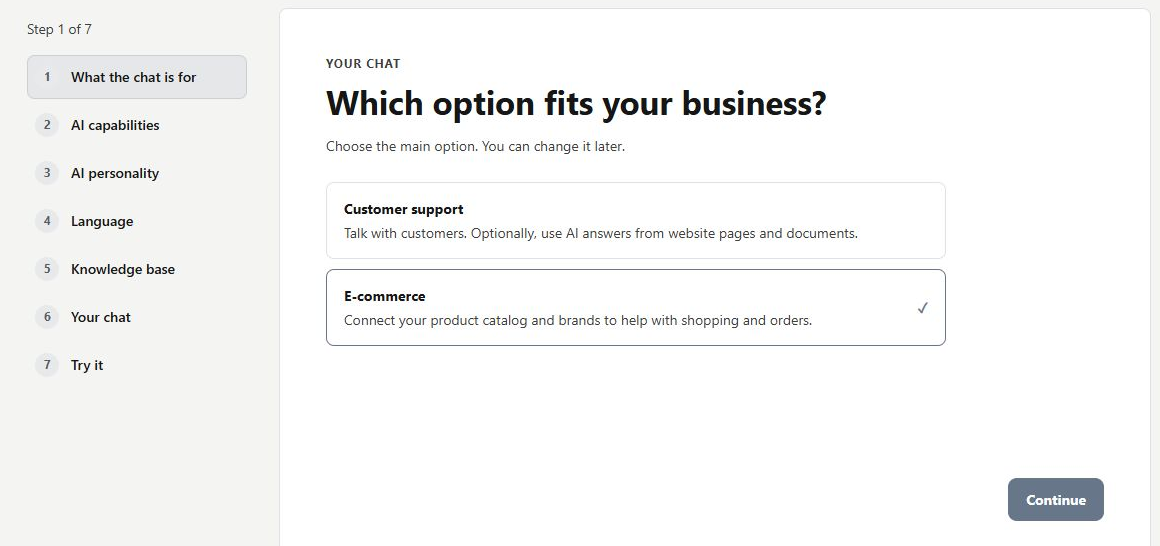
Open Quick setup from Home. Start with the business purpose, then review the customer and team capabilities offered by the guide. The step list shows where you are and which steps have been confirmed. Choosing a capability describes intent; relevant sources and permissions still need to support it.
Check the capabilities and the final boundary
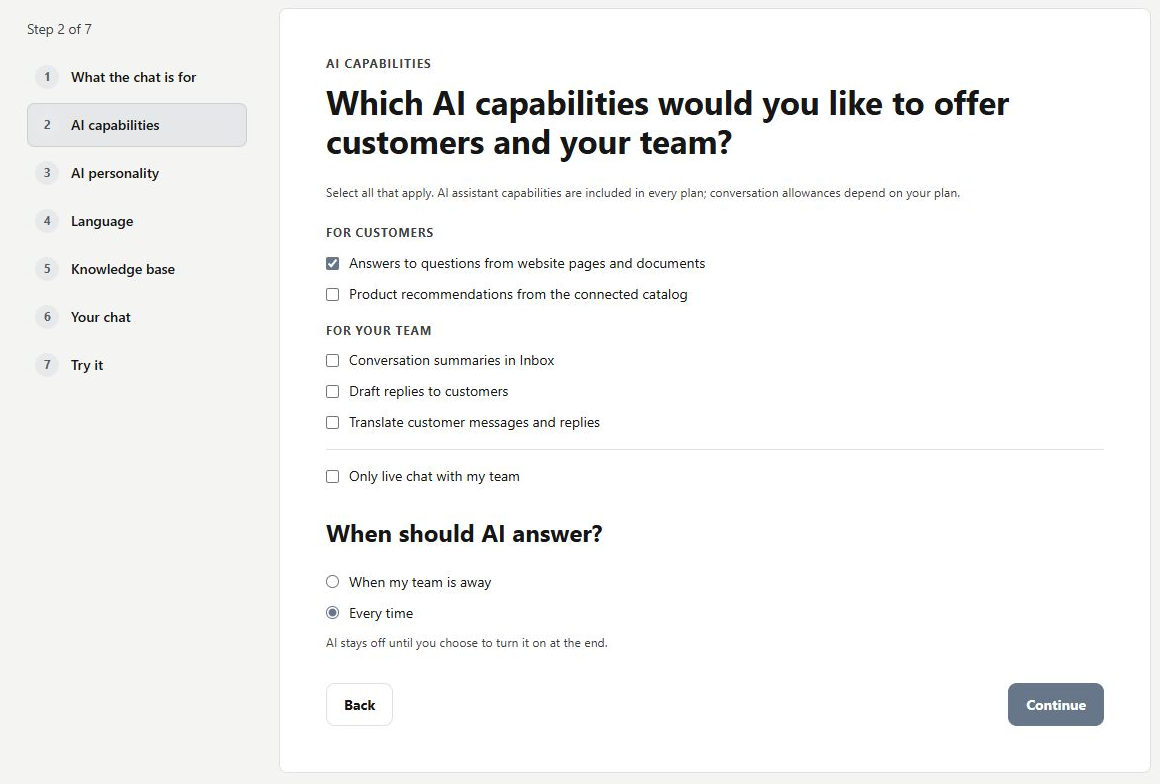
Review when AI should answer and continue through personality, language, knowledge and chat appearance. At Try it, inspect activation and the customer preview before finishing. Website placement is configured separately. Revisit a step when the information is incomplete instead of assuming the final screen fixes an earlier prerequisite.
What you can do
Use the visible controls to review the setup and choose the next step.
- Follow a seven-step setup path.
- Review customer and team capabilities.
- Revisit purpose, language, knowledge and appearance steps.
- Keep final activation and website placement as separate checks.
Continue with the Dashboard guides or your inbox.
Good to know
No. A confirmation records progress through setup. The selected service still needs its knowledge, permissions and connected business data.
Before you begin
Open the intended workspace and review the current state.
- Check the active workspace and your access.
- Review the relevant information and available controls.
- Verify the result after making an intended change.