
Dashboard guide
Find the right place to work
Use the sidebar to move between customer work, service setup and workspace settings without losing the business context.

Short answer
Your Dashboard separates daily customer work from the settings that shape the service. Start with Home, Conversations, Events or Customers, then open the AI Assistant and Settings groups for configuration. Check the active workspace and your role before making changes. The available destinations depend on the workspace's service and your access.
Keep daily work close at hand
The sidebar gives direct access to Home, Conversations, Events, Customers, Statistics and Billing. Use Conversations when an enquiry needs attention, Events for recorded activity and Customers for the information available about a visitor. Statistics answers a reporting question rather than replacing the actual customer exchange.
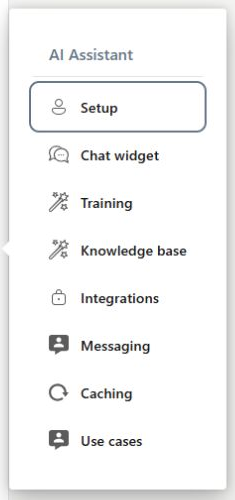
Separate service setup from account preferences
Open AI Assistant for Setup, Chat widget, Training, Knowledge base, Integrations, Messaging, Caching and Use cases. Open Settings for workspace and team controls, and use the account menu for your personal account. Personal Dashboard language belongs to your account; the languages customers see are managed in the workspace and widget experience.
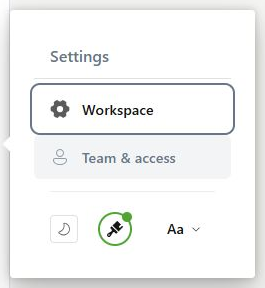
What you can do
Use the visible controls to review the setup and choose the next step.
- Navigate between daily customer-work areas.
- Expand the AI Assistant and Settings groups.
- Keep personal preferences separate from workspace configuration.
- Check access and the selected business before changing settings.
Continue with the Dashboard guides or your inbox.
Good to know
Access depends on the member's role, enabled service and relevant setup. A missing destination does not by itself establish a product fault.
Before you begin
Open the intended workspace and review the current state.
- Check the active workspace and your access.
- Review the relevant information and available controls.
- Verify the result after making an intended change.