
Dashboard guide
Review an app's access to your workspace
Inspect the connected account, grant date and permissions before deciding whether an app should keep its access.

Short answer
Authorized app details let you review the access associated with the current member and workspace. Check the connected account, grant date and displayed permissions before changing anything. Revoking that grant is an access decision: it does not delete provider data or automatically revoke every other team member's authorization.
Check which account and grant you are viewing
Open Integrations, find the connected app and open its management details. Review the account and access state before taking action. The example shows an existing granted connection; it is an inspection of that grant, not a new sign-in or authorization.
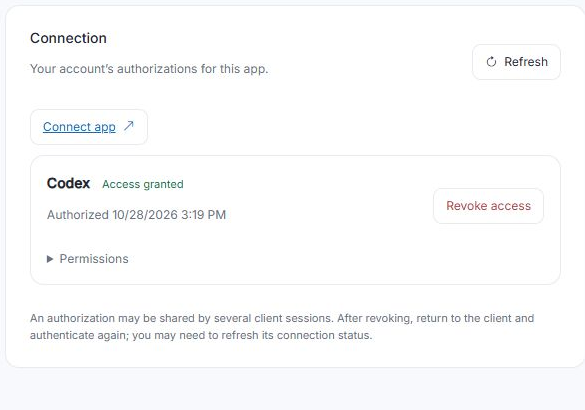
Review the permissions and the scope of revocation
Expand Permissions to read the displayed access. If you intend to remove it, review the account and workspace once more before using Revoke access. That action removes the selected member's grant. Other members' authorizations and the underlying provider records are separate.
- A saved grant and a successful connection check are distinct.
- Use the displayed account, permission and date as context.
- Review failed checks before assuming reconnecting is required.
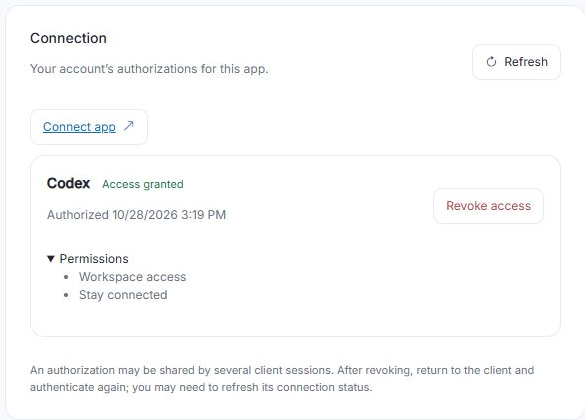
What you can do
Use the visible controls to review the setup and choose the next step.
- Inspect an existing app authorization.
- Review the account, date and access state.
- Expand the displayed permissions.
- Understand the scope before revoking a grant.
Continue with the Dashboard guides or your inbox.
Good to know
The illustrated grant belongs to the current member and workspace. It is not a combined record of every member's authorizations.
Before you begin
Open the intended workspace and review the current state.
- Check the active workspace and your access.
- Review the relevant information and available controls.
- Verify the result after making an intended change.