Dashboard guide
See the activity behind a customer question
Filter recorded customer events and use their available visitor context to understand what happened before following up.

Short answer
Customer events brings recorded activity into a searchable feed. Choose the period and event filters, then inspect a relevant entry and its available visitor context. The feed reflects what connected sources record; it is not a complete account of everything a person did. Use an event as context for investigation rather than assuming it proves intent or a purchase.
Find the moment that matters
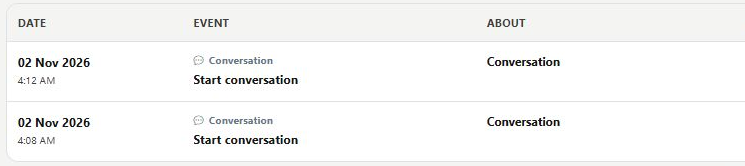
Open Events and review the collection state, active date filter and feed. Search works within the selected filters, so check the period before concluding an event is missing. The example shows the starts of the owner-authorized demonstration conversations, with their time and available context.
Narrow the feed before following up
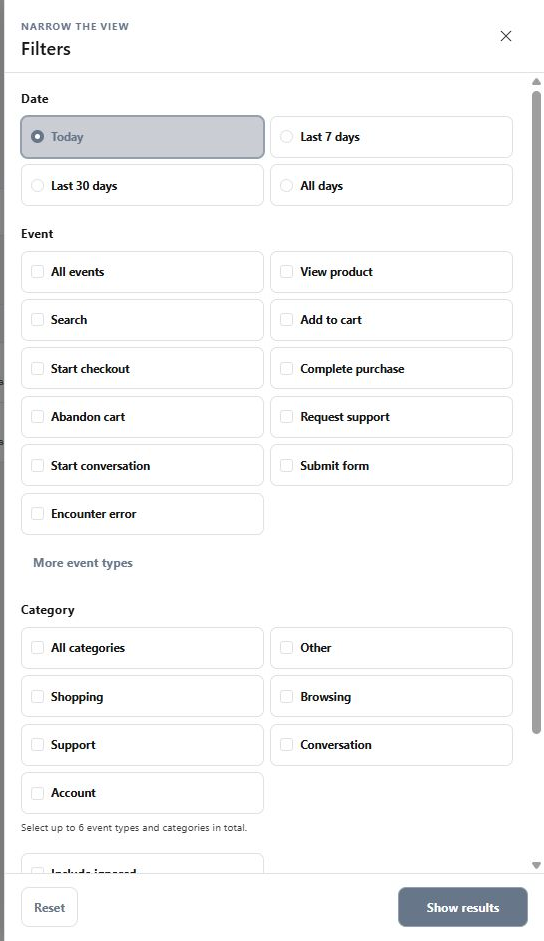
Open Filters to choose the relevant event types and categories. Use the visitor actions to inspect a profile or focus on that customer's recorded events within the chosen dates. Event data can provide details when available. Do not read a conversation-start event as evidence that an order was completed.
What you can do
Use the visible controls to review the setup and choose the next step.
- Search within selected event filters.
- Choose a date range and event categories.
- Inspect available event details.
- Open related visitor context or filter to that visitor's activity.
Continue with the Dashboard guides or your inbox.
Good to know
Check the selected period, event types and collection state first. The feed can only show events that were recorded by available sources.
Before you begin
Open the intended workspace and review the current state.
- Check the active workspace and your access.
- Review the relevant information and available controls.
- Verify the result after making an intended change.