
Dashboard guide
Read a conversation example without changing your setup
Inspect the customer's request and the example answer, then separate presentation ideas from live business evidence.

Short answer
The example conversation viewer pairs a predefined scenario with customer and assistant messages. Open it from Use cases to inspect how the conversation is presented. It is a read-only demonstration in the inspected interface, not an editor for your assistant or a live customer exchange. Use it to plan a real test with current sources and permissions.
Start with the scenario's customer need
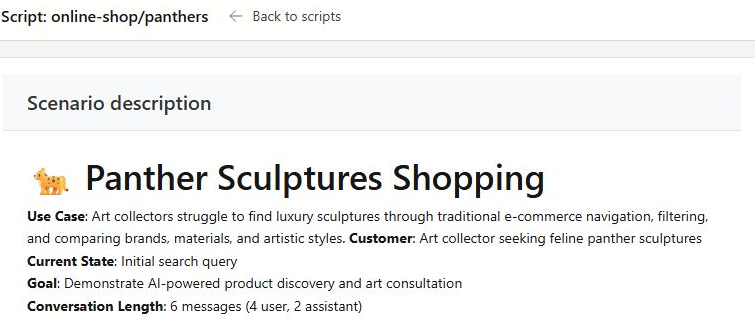
Choose an example card in Use cases. Read the scenario description and the opening question to understand the need being illustrated. The shopping example begins with a request for a sculpture collection. Its content is demonstration material and does not establish current stock, pricing, reviews or enabled integrations.
Inspect the opening exchange, then return to real data
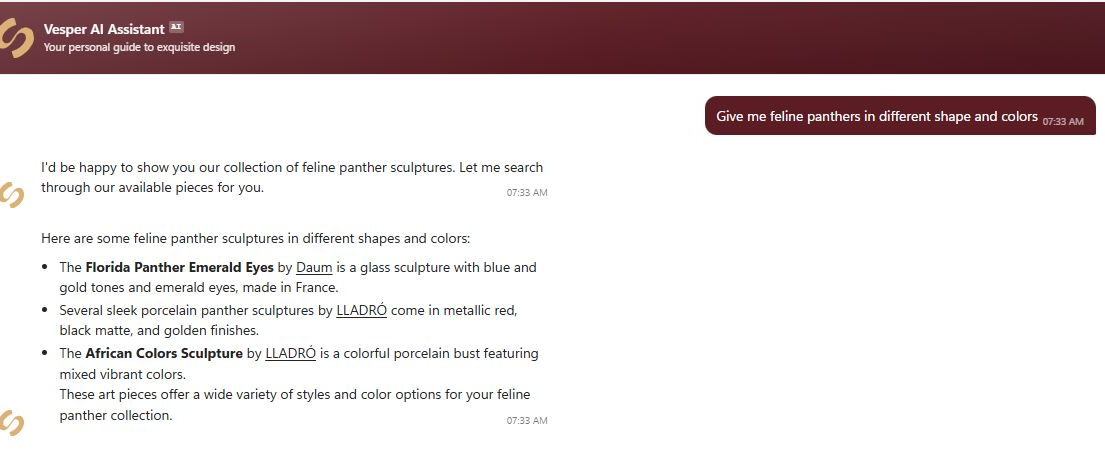
Read how the example answer introduces options and supports a follow-up. The excerpt below deliberately focuses on the opening exchange. To evaluate your own catalogue or service, return to your workspace and test the same kind of question with approved current information. Opening the viewer does not change or publish your assistant configuration.
What you can do
Use the visible controls to review the setup and choose the next step.
- Open a predefined conversation from Use cases.
- Read scenario context and example messages.
- Inspect presentation without editing the live assistant.
- Use the example as a starting point for a real workspace test.
Continue with the Dashboard guides or your inbox.
Good to know
The inspected viewer presents a predefined conversation. Use the relevant setup or knowledge page to change your own configuration.
Before you begin
Open the intended workspace and review the current state.
- Check the active workspace and your access.
- Review the relevant information and available controls.
- Verify the result after making an intended change.