
Dashboard guide
Turn recurring questions into reviewed answers
Prepare concise FAQs from current business information, review proposed answers and keep their shared knowledge allowance in view.

Short answer
FAQ Builder helps you maintain short answers to questions your team hears repeatedly. Write from an approved source, review generated candidates and approve only information your business can stand behind. FAQs share the displayed compact knowledge budget with Business input, so longer policies belong in maintained documents or source pages.
Prepare a clear question and a factual answer
Open Knowledge base > FAQ Builder. Start with one recurring customer question and answer it directly from current business information. The example below is an unsaved preparation: it describes what shoppers can explore without inventing stock, delivery terms or guarantees. Review the proposed wording before adding it.
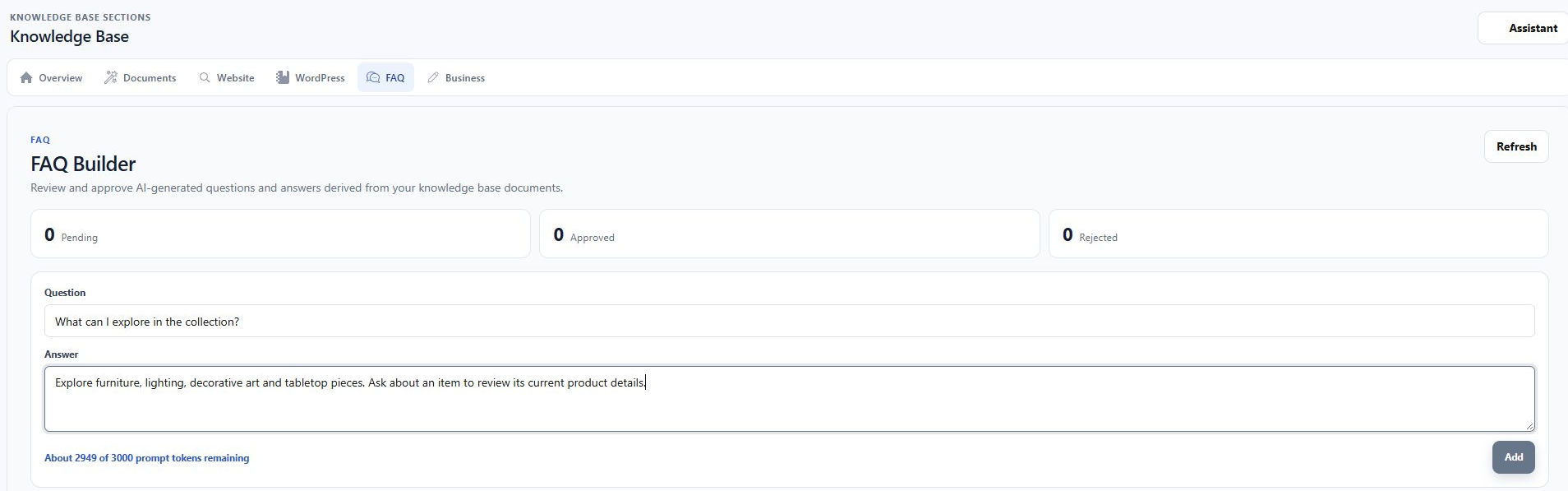
Keep an authoritative source behind the wording
The document summary below illustrates the source check behind a concise answer. Generated FAQ candidates still need review. Approve useful, verified answers and reject unsupported or obsolete candidates. When a fact changes, update the approved answer as well as the source that informed it.
- Use one short answer per recurring question.
- Check budget validation before assuming a longer answer was saved.
- Keep extensive policies in documents or maintained pages.

What you can do
Use the visible controls to review the setup and choose the next step.
- Prepare or edit concise question-and-answer pairs.
- Review generated candidates before approval.
- Separate pending, approved and rejected answers.
- Manage the compact budget shared with Business input.
Continue with the Dashboard guides or your inbox.
Good to know
No. A person must review it against current business information before approving it.
Before you begin
Open the intended workspace and review the current state.
- Check the active workspace and your access.
- Review the relevant information and available controls.
- Verify the result after making an intended change.