
Dashboard guide
Connect the systems your team already uses
Explore available services, inspect connection state and distinguish a listed integration from information that is ready to use.

Short answer
Integrations is the catalogue of service connections, communication channels and authorized apps for your workspace. Search for a service or business task, open its details and review the supported setup and current state. A catalogue listing, a saved connection, a successful access check and a completed data import are separate milestones.
Find a service and read its availability
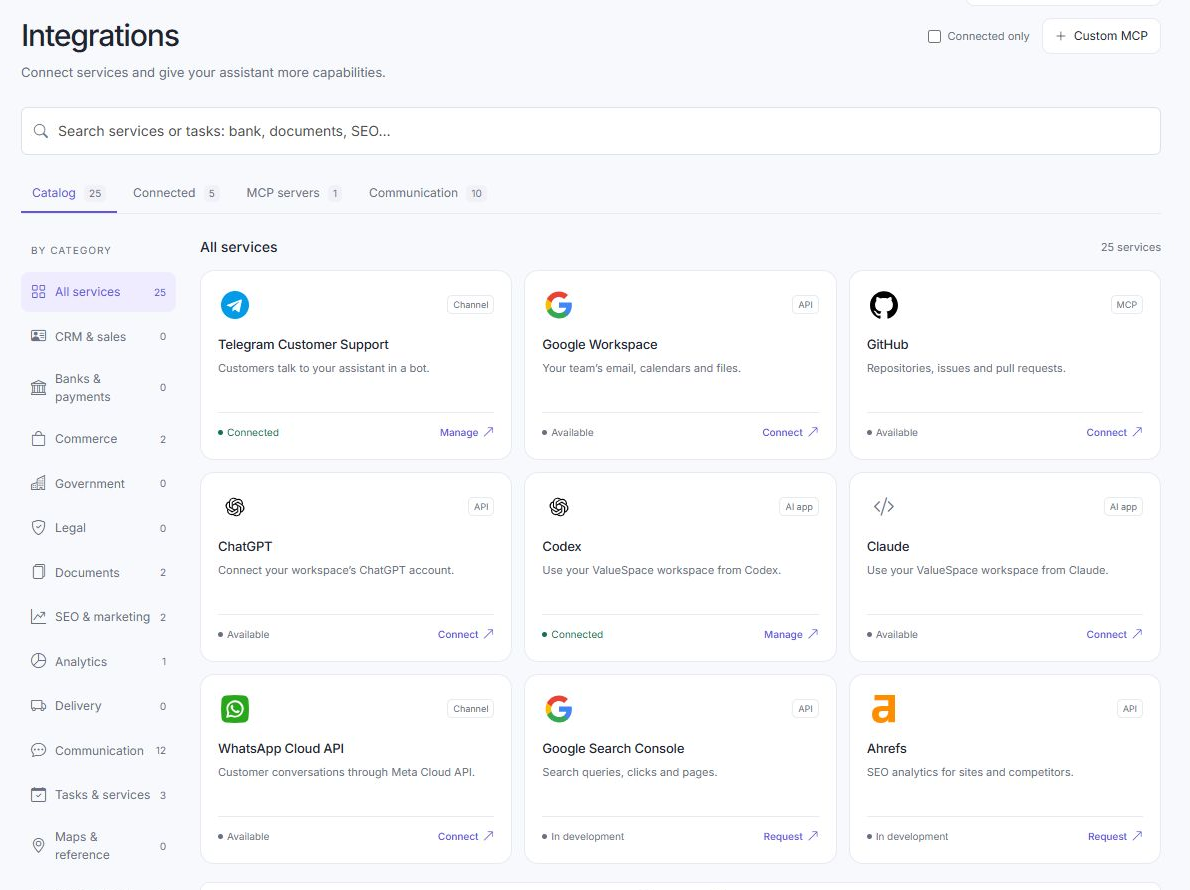
Open AI Assistant > Integrations. Use Global services and the catalogue filters to explore the available business systems and communication channels. Search by service or task. Development and unverified labels describe the current state; a listing does not mean the service is connected, included in your plan or ready to perform actions.
Inspect the connection before relying on its data
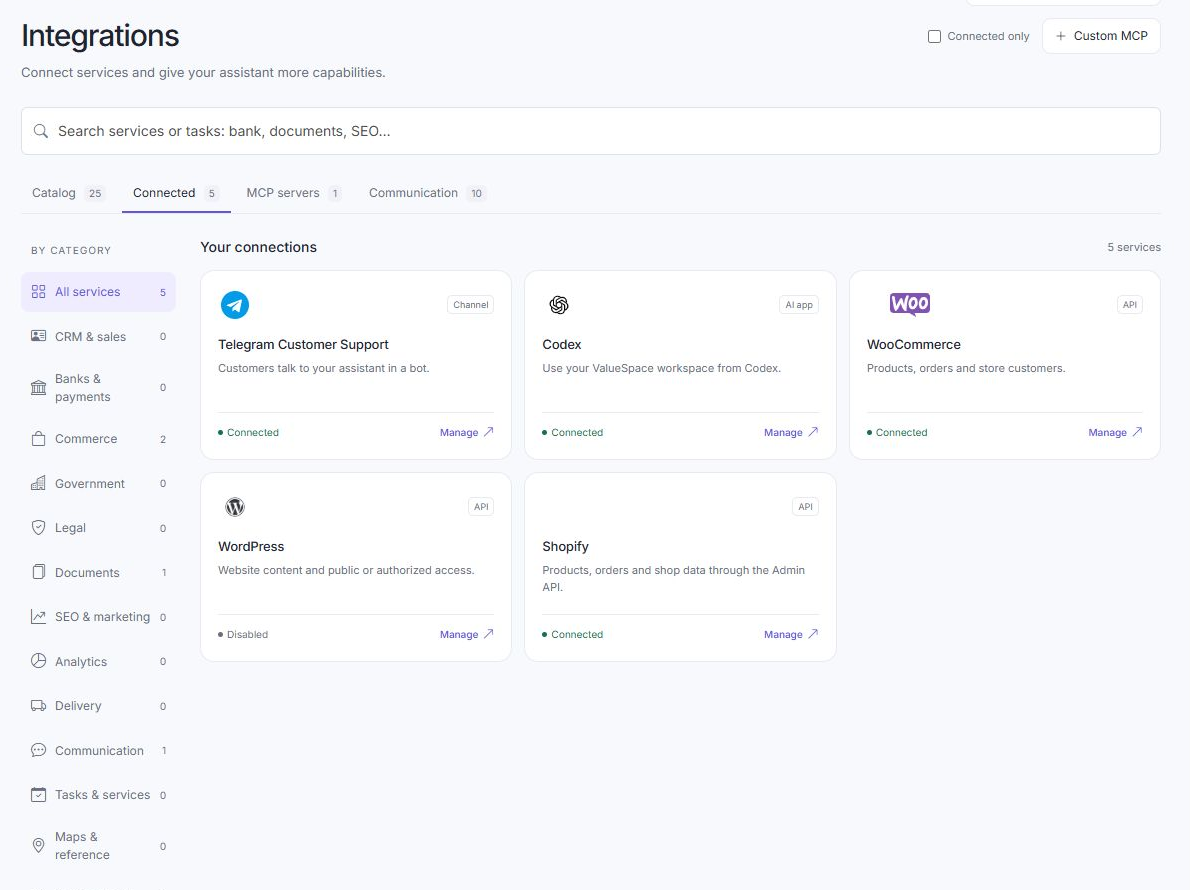
Use Connected or Connected only to review saved connections. Open the service card, check the correct account and permissions, and follow its supported secure setup when you intend to connect it. Start any required import separately. If a provider check fails temporarily, retry that check before replacing a working connection.
- Review requested access before granting it.
- Check the returned state after completing a supported connection.
- Verify required source imports and processing independently.
What you can do
Use the visible controls to review the setup and choose the next step.
- Find service connections by name or task.
- Filter the catalogue and connected services.
- Review supported setup and connection state.
- Distinguish availability, authorization and ready data.
Continue with the Dashboard guides or your inbox.
Good to know
No. It may need setup, authorization, an access check and a separate import. Read development or unverified labels literally.
Before you begin
Open the intended workspace and review the current state.
- Check the active workspace and your access.
- Review the relevant information and available controls.
- Verify the result after making an intended change.