
Dashboard guide
Give answers a reliable document to start from
Add useful business documents, follow their preparation and inspect the extracted summary before relying on them in customer answers.

Short answer
Documents lets you add reference files that help answer business questions. Upload a supported file, wait for its preparation to finish and inspect the resulting summary. A file in the list still needs readable, relevant information: review its status and content before assuming it can support a useful customer reply.
Upload the reference you actually want used
Open Knowledge base > Documents. Choose a concise, current reference such as a company overview, service guide or product care document. Use the upload area to select the file and review the limits shown for its format and the workspace's remaining allowance. Upload begins preparation; it does not certify the contents.
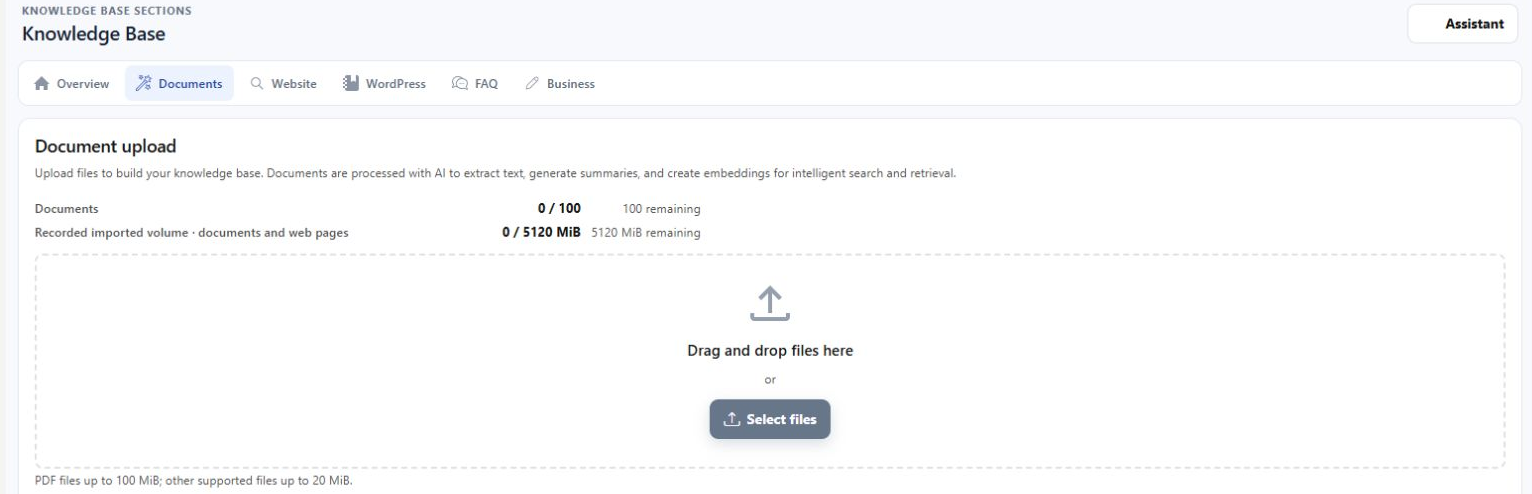
Read what the assistant can learn from it
Follow the file's processing state, then open Summary. Check that names, services, practical details and boundaries were captured correctly. The example shows a prepared company overview with its collection and showroom context. If a source is obsolete or unreadable, correct the reference and review its replacement before relying on it.
- Processing and content quality are separate checks.
- Use documents you are authorised to provide and keep business facts current.

What you can do
Use the visible controls to review the setup and choose the next step.
- Upload reference documents from the Documents page.
- Follow each file's processing status.
- Open an extracted summary for an existing prepared document.
- Review the displayed file and workspace limits before upload.
Continue with the Dashboard guides or your inbox.
Good to know
No. Preparation makes readable material available, but its accuracy and relevance still depend on the source. Check the summary and try a representative question.
Before you begin
Open the intended workspace and review the current state.
- Check the active workspace and your access.
- Review the relevant information and available controls.
- Verify the result after making an intended change.