
Dashboard guide
Try the customer conversation privately first
Ask a realistic question in the private widget preview, inspect the actual answer and keep public rollout as a separate check.

Short answer
The private widget preview lets you explore a real customer-style conversation before a public rollout. Save the configuration you intend to test, ask a realistic question and inspect the resulting messages and product cards. This uses the real assistant path and can consume usage. It is different from isolated personality rehearsal and does not by itself prove a public installation or provider action succeeded.
Ask a question tied to a known source
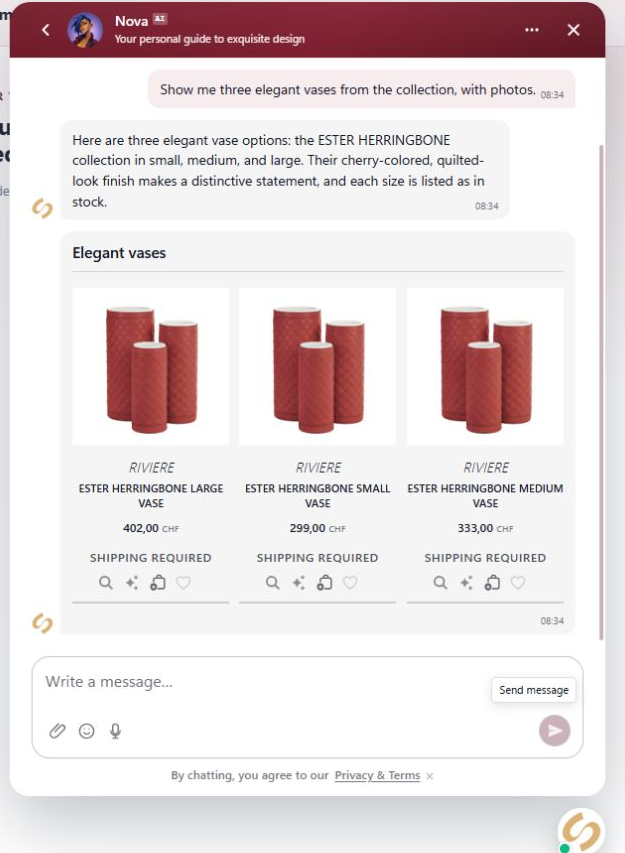
Open Chat widget and review the preview's saved-configuration context and customer language. Choose a question you can verify against the business source. In this example, a request for three elegant vases produces catalogue recommendations with photos. Use safe example data while exploring the interaction.

Review the answer and then check the public experience separately
Inspect the result for relevance, correct facts and useful item links. Try a missing fact or a request for a person when reviewing boundaries. Playground-marked conversations are tests, but the real assistant path is different from rehearsal that blocks business actions. Publish intended settings and verify the actual website separately.
- A successful preview is not proof of a completed booking, payment or website installation.
- Review any consequential action before authorising it.
What you can do
Use the visible controls to review the setup and choose the next step.
- Use the private widget preview with relevant saved settings.
- Ask coherent customer-style questions using connected knowledge.
- Inspect actual messages and catalogue cards.
- Keep test traffic and public rollout verification separate.
Continue with the Dashboard guides or your inbox.
Good to know
Yes. It uses the real assistant path and can consume usage. Choose questions that help you assess a meaningful source or behaviour.
Before you begin
Open the intended workspace and review the current state.
- Check the active workspace and your access.
- Review the relevant information and available controls.
- Verify the result after making an intended change.