
Dashboard guide
Help shoppers compare what they are shown
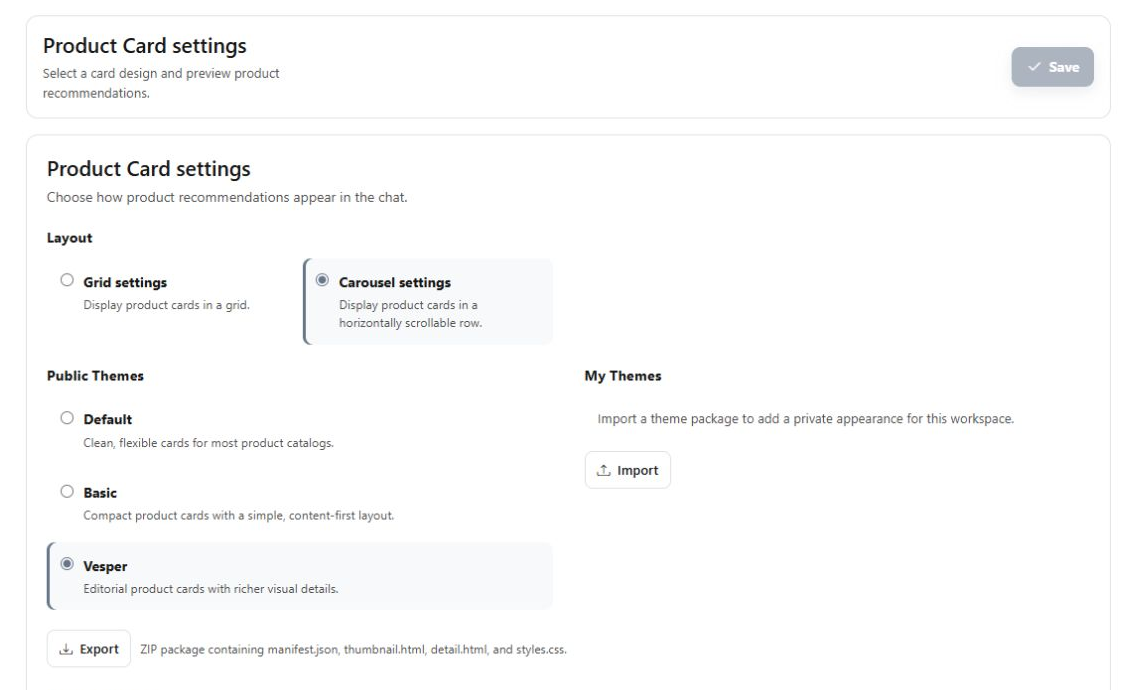
Review product-card layouts and themes, then check the presentation with an actual catalogue question.

Short answer
Product cards turn available catalogue recommendations into items a shopper can compare and open. In Product Card settings, choose the layout and an available theme, then review the design examples before saving and publishing. Check an actual catalogue question afterwards. A theme changes presentation; it does not create products or correct prices, stock, descriptions or search relevance.
Review the layout before choosing a theme
Open Chat widget > Product Card. Compare the grid and carousel choices and the built-in or available private themes. Thumbnail and single-card preview formats help inspect different levels of detail. The editor's design preview uses illustrative local products and does not send a customer message.
Check the design with actual catalogue items
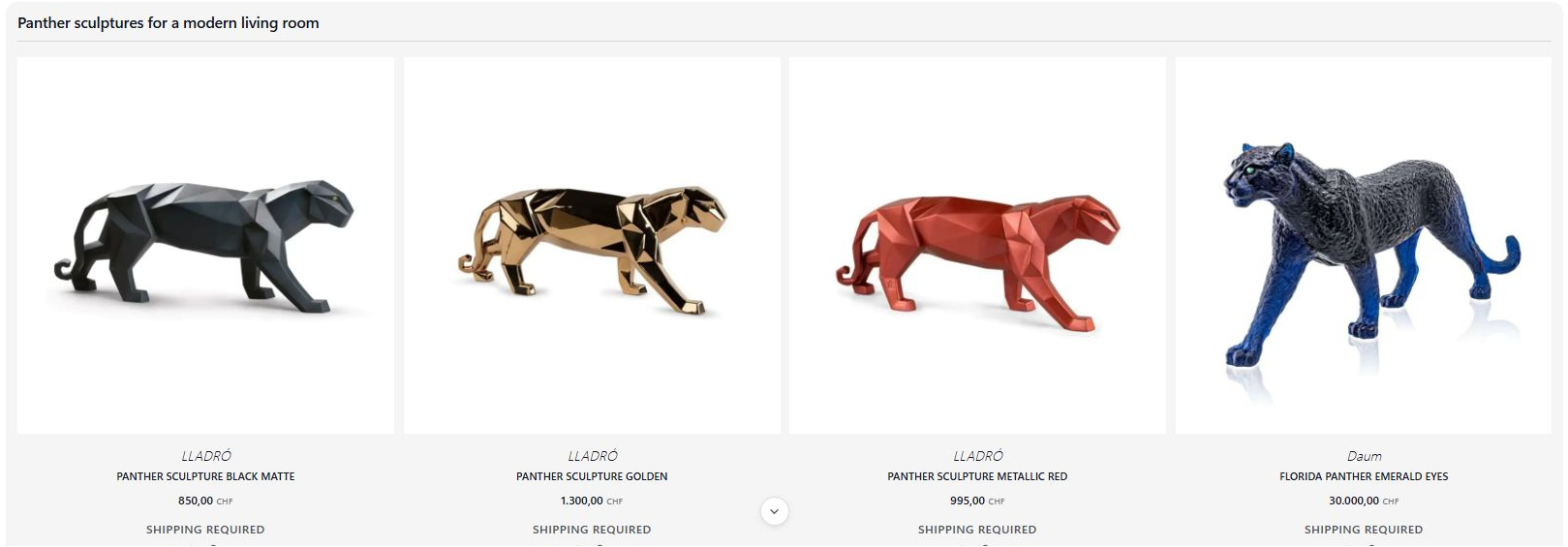
Use a relevant product enquiry to see whether photos, names, prices and item links remain clear. This separate demonstration shows real panther recommendations from the connected collection. If the wrong item or fact appears, review the catalogue source and processing; changing the card theme alone will not fix it.
- Design-preview products, ratings and delivery labels are illustrative.
- Actual item information depends on the connected catalogue and its current preparation state.
What you can do
Use the visible controls to review the setup and choose the next step.
- Review grid or carousel presentation.
- Choose an available built-in or private theme.
- Inspect thumbnail and single-card design examples.
- Save and publish the intended presentation, then test actual catalogue results.
Continue with the Dashboard guides or your inbox.
Good to know
No. Prices and stock come from the connected catalogue. Correct the source and complete processing when a fact is wrong.
Before you begin
Open the intended workspace and review the current state.
- Check the active workspace and your access.
- Review the relevant information and available controls.
- Verify the result after making an intended change.