
Dashboard guide
See the products your assistant can find
Search synchronized catalogue records, inspect item details and verify source freshness before relying on a recommendation.

Short answer
Product catalogue helps you inspect the product information that has reached your workspace. Search or filter the grid, review attributes and open an item to inspect its details and imagery. The page reflects synchronized data. Changing a working view does not edit the source shop, and existing records can remain visible even when a more recent synchronization has failed.
Narrow the catalogue to a real shopper need
Open Training > Product catalogue. Search in ordinary language or use the available category and brand filters. The panther example narrows the existing catalogue to relevant sculptures. Review the item's type, attributes, visibility and processing information alongside price and stock; do not treat a matching title alone as sufficient.
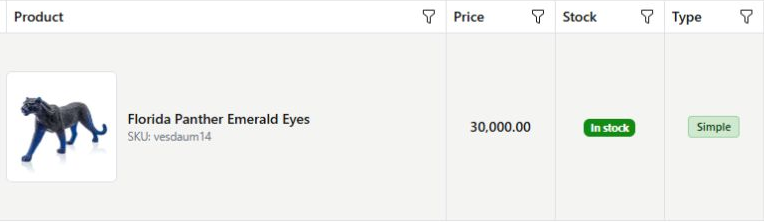
Inspect the item and check its freshness
Open a product to review the available description, images and customer-facing preview. If information is incomplete or old, correct the source shop and complete synchronization. In this example the workspace has existing catalogue records but its latest sync reports a failure. The displayed records therefore do not establish that the latest shop changes have arrived.
- Sorting, grouping and filtering change your working view.
- Source-owned product facts must be corrected in the shop.
- A variation is not necessarily counted as a standalone product card.

What you can do
Use the visible controls to review the setup and choose the next step.
- Search existing synchronized product records.
- Filter and arrange a useful catalogue working view.
- Inspect descriptions, attributes and available images.
- Check delivery and processing when records are missing or stale.
Continue with the Dashboard guides or your inbox.
Good to know
No. It changes the records displayed in the inspection view.
Before you begin
Open the intended workspace and review the current state.
- Check the active workspace and your access.
- Review the relevant information and available controls.
- Verify the result after making an intended change.