
Dashboard guide
Give customers a useful first question
Turn an empty chat into a clear starting point with suggested questions, customer-language copy and deliberate send behaviour.

Short answer
Prompt suggestions give visitors a practical way to begin a conversation. In Chat widget > Prompts, write a short visible label and the question it should send, then choose whether selecting it sends immediately. Review the suggestion in the intended customer language before saving the section and publishing the complete widget.
Choose what customers should discover first
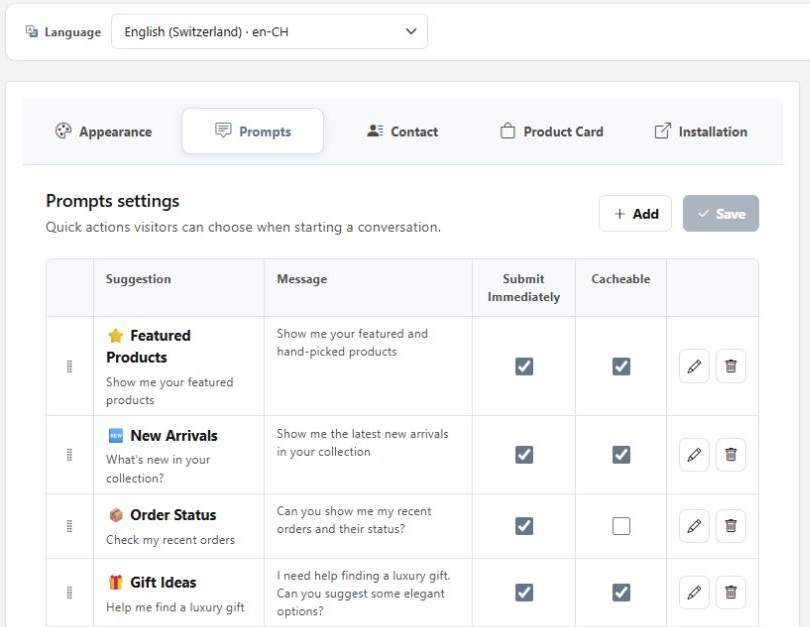
Start with a real reason someone visits your website: explore the collection, ask about an order or contact the team. Keep each title short enough to scan. The list shows the suggestion, its displayed message, immediate-send choice and answer-caching choice together, so you can review the welcome as a set.
Separate the invitation from the actual question
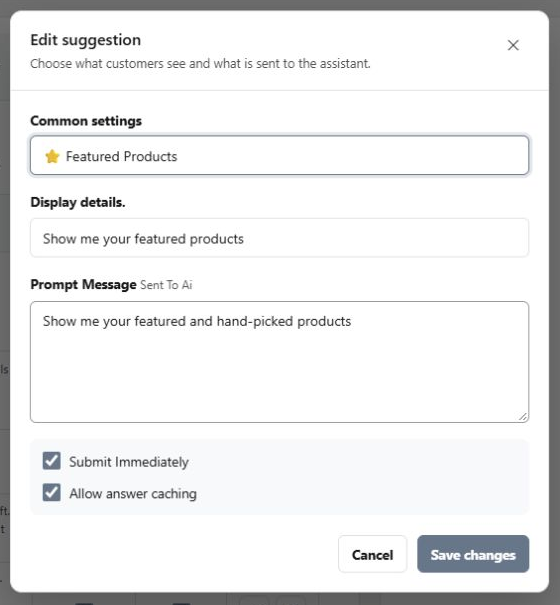
Open an existing suggestion or choose Add. Its title and display details help the visitor choose; the prompt message is what the assistant receives. Submit immediately determines whether selecting the suggestion sends it straight away. Review Allow answer caching for that suggestion, save the changes and publish when the whole saved widget is ready.
- Check the customer language before editing visible text.
- A suggestion starts an enquiry; it does not reserve an item or complete an order.
What you can do
Use the visible controls to review the setup and choose the next step.
- Create, edit, remove and reorder suggested conversation starters.
- Write separate visible labels and messages sent to the assistant.
- Choose immediate submission and per-suggestion answer caching.
- Save the section before publishing the complete widget.
Continue with the Dashboard guides or your inbox.
Good to know
Only when Submit immediately is selected. Otherwise the customer can review the prepared message before sending.
Before you begin
Open the intended workspace and review the current state.
- Check the active workspace and your access.
- Review the relevant information and available controls.
- Verify the result after making an intended change.