
Dashboard guide
Keep customer languages consistent across your workspace
Manage shared customer-language choices separately from your personal Dashboard language and review the intended widget language.

Short answer
Workspace settings holds the shared business identity and customer languages for your team. Open Customer languages to add or reorder languages and choose the default, then save that language configuration. Your personal Dashboard and email language belongs in Account settings. Selecting languages does not automatically translate every knowledge source.
Review the shared customer-language list
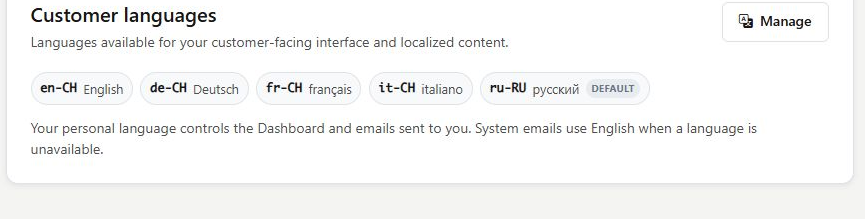
Open Settings > Workspace and find Customer languages. Check which languages are available and which one is the default before editing customer-facing content. The displayed list belongs to this workspace, not to your personal interface preferences. Language names may be shown in their own language to make them easier to recognize.
Manage and save the intended language configuration
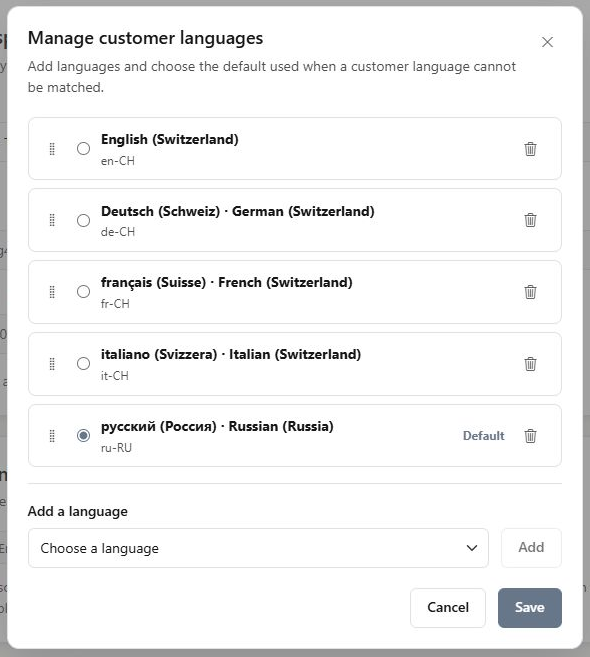
Choose Manage to add, reorder or remove languages and select the default. Review the complete list before saving. Then check the intended customer language in the widget setup and published experience. Workspace name and editable website fields have a different save behavior: they save when you leave the field, and a provider-managed website can be read-only.
- Use Account settings for your own Dashboard language.
- Review translated customer copy in each intended language.
- Verify failed edits with the offered Retry control.
What you can do
Use the visible controls to review the setup and choose the next step.
- Review shared customer-language choices.
- Add, order or remove languages through Manage.
- Choose and save the workspace default.
- Keep personal interface language separate.
Continue with the Dashboard guides or your inbox.
Good to know
No. Personal Dashboard/email language and workspace customer languages are separate settings.
Before you begin
Open the intended workspace and review the current state.
- Check the active workspace and your access.
- Review the relevant information and available controls.
- Verify the result after making an intended change.