
Your website chat
Make the chat feel like your brand
Choose the name, welcome message, colours and images your customers see. Review the chat appearance in preview before publishing your saved settings.

Short answer
Make your website chat recognisably yours with a clear name, a welcoming first message and a palette that fits your business. In Appearance, choose the customer language, edit the identity, colours and images, then review the result in preview. Save your changes as a draft and publish the complete saved widget configuration when you are ready for visitors to see it.
Welcome customers in your own words
Open AI Assistant > Chat widget > Appearance and choose the customer language. Set the assistant name, slogan and greeting, then review the labels for actions and recent conversations. A visitor should recognise who is helping and understand how to begin.
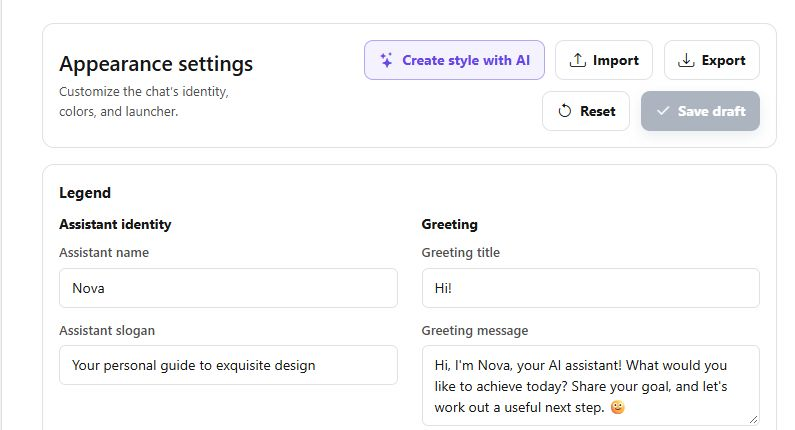
Bring your colours and images together
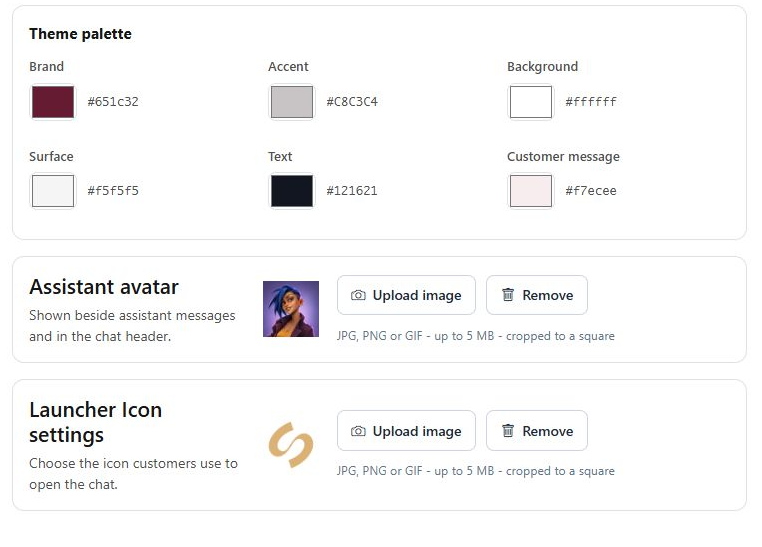
Choose the brand and accent colours, then check the background, text and message surfaces together. Add an assistant avatar for the header and replies, and a separate launcher image for the button that opens the chat. Keep text easy to read against each surface.
- JPG, PNG and GIF uploads are supported up to 5 MB, with a square crop.
- Create style with AI can suggest a starting palette from a website or image. Review its contrast and brand fit before saving.
See the welcome before your visitors do
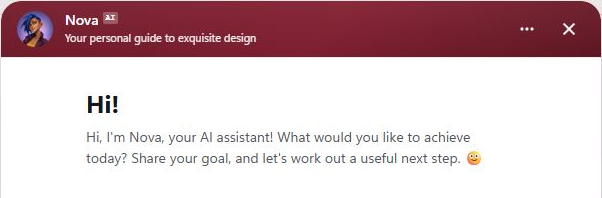
Use the preview to check the name, greeting, avatar and colour contrast as one experience. Save draft keeps the edited section ready for review. When the saved configuration is ready, Publish applies the whole widget, including its saved settings and customer languages. Check the website chat afterwards.
- The preview below shows the configured identity and welcome area. It is a design preview, not proof that the draft is already live.
- Widget appearance and publication are separate from assistant activation, answering mode and the knowledge used in replies.
What you can do
Shape the customer-facing chat from one Appearance workspace.
- Owner and Admin members can edit widget appearance in their workspace.
- Customer-language selection controls which visible texts you edit.
- Identity, greeting, palette, assistant avatar and launcher can be reviewed together.
- Save draft and Publish are separate steps; publication applies the complete saved widget configuration.
Continue with Your conversations, all in one inbox or From AI to your team.
Good to know
Check whether the edited section was saved and the complete widget draft published. Unsaved edits and a saved draft are separate from the visitor-facing configuration. Then check the chat on the intended website or Direct Chat Link.
Start with a recognisable welcome
Review one customer language before making the saved widget live.
- Choose a clear name and useful greeting.
- Check colours, avatar and launcher in preview.
- Save the edited section, review the complete draft and publish when ready.